Media and New Technology Customized Search

Sunday, May 25

10 Largest online databases

Library of infinity


Talking about infinit numbers of multimedia! Can you imagine combining "multi" and "infinit" in the same sentence, so how much am i talking about?


All of us have tried to collect items in our childhood and maybe even now. But of course we can reach a huge number but not even close to infinity. We might do pir best to collect as much songs we could on our computers, but still, limited. If so, could there be somwhere an infinit number of data?! Many has confirmed that the closest to an "infinit library" is the internet. So in this post i would like to list the largest databases on our beloved net.


The question to be asked... could there be a limit to storage? or is infinity the number that we will reach?


10. Library of Congress:


Library of Congress (LC) boasts more than 130 million items ranging from cook books to colonial newspapers to U.S. government proceedings. 20 Terabytes of data.


9. Central Intelligence Agency


The CIA, do i have to explain? Of course, there is an unknown number of information in this database, and the exact number of size is remained mysterious, but it is known that each month 100 Freedom of Information Act (FOIA) items are added with comprehensive statistics of 250 countries.


8. Amazon


A pretty famous database; Which is the largest retail store online. Containing more that 54 million customers worldwide, and more that 42 database of data.


7. YouTube


Another famouse database; Known for storing videos. It contains at least 45 terabytes of videos. "Given: 65,000 videos per day X 30 days per month = 1,950,000 videos per month; 1 terabyte = 1,048,576 megabytes. If we assume that each video has a size of 1MB, YouTube would expect to grow 1.86 terabytes next month. Similarly, if we assume that each video has a size of 10MB, YouTube would expect to grow 18.6 terabytes next month."


6. ChoicePoint


Imagine if this ChoicePoint database is a book, and you would have to search in a book of a billion pages for a phone number! This database contains information of 250 million people which leads to a big number of 250 terabytes of personal data! Are you able to comprehend the numbers?
5. Sprint


One of the largest telecommunication companies. It offers services to more than 53 million subscribers. 365 million call record processed by day, 70 thousand call detail recorded per second.
4. Google


Everybody knows "Google". This blog would be made if it werent for google. 91 million searches per day (Among them me!), with a countless number of users.
3. AT&T


Similar to "Sprint", the United States' oldest telecommunications company AT&T maintains one of the world's largest databases. Containing 1.9 trillion phone call record leading to a database of 323 terabytes of information.


2. National Energy Research Scientific Computing Center


The second largest database in the world, National Energy Research Scientific Computing Center (NERSC) in Oakland, California, is owned by Lawrence Berkeley National Laboratory and the U.S. Department of Energy. Now we have reached a new number, we now can use the peta! For this database has 2.8 petabytes of data that is operated by 2,000 computational scientists.


1. World Data Centre for Climate

Operated by the Max Planck Institute for Meteorology and German Climate Computing Centre, The World Data Centre for Climate (WDCC) is the largest database in the world. Our winner has 220 terabytes of web data and 6 petabytes of additional data!


So if you ask me: Did we reach infinity yet? Now you can answer for yourself!


Posted by: Mayez Kabbara

Wednesday, May 21

Re: Restore your Deleted Files (Arabic)


In my older post: "Restore your Deleted Files", I spoke about how you can use the Freeware software "Undelete-Plus" to retrieve your deleted files. Many people told me that it isnt working in the way they wish it would (Even thouh it works great with me). Therefor I will i explain how about another way that hopefully will meet your expectations. Visit http://www.drd.ae/?gclid=CIalisrQy5MCFQyI1Qod6UZXkw. This site is related to the UAE (United Arab Emirates) which are developing in a noticeable fast pace in technology in the Arab world, and because of the fact that it is an Arabic country that had hand in making this site, then you can click on the left link on the top to check the arabic version of the site incase you had a difficulty understanding the steps in English.


Posted by: Mayez Kabbara

Tuesday, May 20

How to create a custom Search Engine for your Blog

Creating a search engine on your blog (powered by Google) is very easy. You can create one just like the search engine above on our blog. It could help you, or your visitors in various ways. You could even specify the sites you want the search engine to search on, this could help when you want to specify the topic of your search results so that it would be in the same topic your blog is about. Like on our blog, i specified the results to be from media and new technologies so that in case you would like to know more about certain topics of our blog you could simply search it in the the search engine in our blog.


Here are the steps to create a search engine on your blog (or personal site):

  1. Go to http://www.google.com/coop/cse/?hl=en.
  2. Then click on "Create a Custom Search Engine" (or to jump a step ahead, just click on the picture below).
  3. Then a page of the first of 2 steps will appear asking you to name and other questions related to how you would like you search engine to be modified.
  4. After you have agreed on the terms and conditions and after you have clicked "Next", the second page will open asking you to try it out.
  5. then when your satisfied with it, click finish.
  6. After you have created the search engine. Your next step is to put it on your blog. To do so, click on "Control Panel" of your search engine, then open the "Code" section.
  7. In the "Code" page, select "on a Google-Hosted page".
  8. Then highlight the search box code to where you wish your costumed search engine to appear on your blog. Just like how explained below.

You can always go back to the site: http://www.google.com/coop/cse/?hl=en to modify, delete or even create other search engines.


Posted by: Ghyna Kurdy.

Sunday, May 18

Moving the briefcase from your desktop PC to your laptop


If you have a desktop computer and a laptop, and you want to have similar files on both devices. Then your "briefcase" is there for that service.

Create a briefcase in both your laptop and PC, then put files in either briefcase.


Then follow these steps:

  1. Connect your laptop to your PC.
  2. Open your briefcase that you want it to be updated, or changed like the other one.
  3. Then click on "Update all Files" in the briefcase.


Using the briefcase is very practical and quick. So i advice anyone that have laptops and PCs to use this feature or at least check it and know how to use it. It is very simple.

There you go, you have your briefcase automatically updated and ready for the run!


Posted by: Mayez Kabbara

Friday, May 16

Making money using Amazon.com

I previously spoke about how you could make money using AdSense... Here is Another way that helps bloggers to make money:


http://www.amazon.com/: It is an affiliate program that allows your blog to connect readers and online sites that offers benefits together. You just have to mention the name of a certain book in your blog, and this program enables your visitor to click from your own blog to Amazon to develop their information about this book. And you get paid if the readers break out the checkbook or charge card. Moreover you can market your services in your blog. Instead of writing a diary that deals with your quotidian experiences, you can generate business, by publishing a post about your certificates, majors, skills and experiences. And in return, other bloggers may offer career to the visitors of their blogs by mentioning the requirements and obligations. Or you can simply take the advantage and advertise through your blog for your business, by informing customers and readers about every single thing your business does, Such as sales, product's quality, services, and special offers. This may expand your visitor's appreciation to your productions.


Posted by: Ghyna Kurdy

Thursday, May 15

How to delete your files permanently

I previously spoke about how you can restore files from your computer (restore your deleted files). In this post i will explain how you can delete your files ENTIRELY from your computer, that no one can restore it again (There will always be a way to restore files no matter how much and how it has been deleted, but using this method wont allow any average 'deleted file restoring' software, but will need a more high-tech software to do the trick against this technology of deleting files).

Again, as i always say, there are many programs that you could use to delete files entirely from your PC, you can simply go to Google search and search for free programs that could delete your files completely or just click on this hyperlink: "delete files completely free". Or you can find a list of programs with images, descriptions and prices on this link: http://delete-file.safe-install.com/, or free programs on this site: http://www.freedownloadmanager.org/downloads/file_deletion_software/.


I will talk about "AEVITA Wipe & Delete" program. As they say on their website: "AEVITA Wipe & Delete is a reliable and ultra-fast shredder that will help you securely erase any file or folder without any chances for its recovery". I don't know if this is 100% true because of the fact that i know that there is always a way, but till now, this program has served me pretty well.


Now i will explain in 5 easy steps how you can delete your files entirely (or almost entirely) from your computer:-


  1. Download AEVITA Wipe & Delete (1.3 Mbs).


  2. Install AEVITA on your computer (Just follow the steps after you double-click on the downloaded folder, the downloaded program or the installer has an icon of a red X).


  3. Once you open the AEVITA program, a welcome window will ask you weather you want to delete files using wiping or wipe free space. Select 'delete files and folders using wiping' and click next.


  4. Then click on "Add Files" or "Add Folders", then select them so that they are shown in the middle as shown below. After you selected all the files and/or folders you want to permanently delete, click next.


  5. A warning sign will then appear asking you if you want to permanently delete this file/folder foe sure. WARNING: Be careful. after you delete your files using wiping, it will be somehow impossible to restore these files, so select them with extreme caution.


Posted by: Mayez Kabbara.

Wednesday, May 14

BlogAd

What is a BlogAd?


Blogad is an online ad network, found in August 2002, based in West carolina that provides advertising services to both bloggers and advertisers in general. It attaches bloggers with promoters and imposes a commission in return for any ad placement that results. "The nice thing, too, is that the Ads are relatively unobtrusive," says Scott Allen, co-author of "The Virtual Handshake: Opening Doors and Closing Deals Online."


To know more about blogAds; how to make and how to subscribe to go to http://www.blogad.com/. You can create an account and learn more about BlogAds there.


Posted by: Ghyna kurdy

Monday, May 12

Apple: Time Capsules!


January 15, 2008 (Macworld) -- Apple Inc. today unveiled Time Capsule, a new product designed as companion hardware to the Time Machine automatic backup feature in OS X 10.5.
Introduced as part of the OS X Leopard upgrade last October, Time Machine automatically backs up the contents of a Mac to an external hard drive.
Time Capsule combines an 802.11n network access point and a hard disk drive. The device is a "full AirPort Extreme base station" -- it bears an uncanny resemblance to Apple's wireless base station -- combined with "a server-grade hard drive," according to Apple CEO Steve Jobs.


Time Capsules we all are familiar with what they are and what they do. It sends things to the future by storaing it all the time before, as if it is sent in a time machine. Apple, has created us time capsules that we can always benifit from. For you can store files in a time calpsule then throgh time, get any info you need from it, from the backed-up files of the time capsules (Data, photo, video, multimedias, etc...) wirelessly.


Time Capsule features dual-band antennas for 2.4 GHz or 5 GHz frequencies. It has one USB 2.0, Gigabit Ethernet and 3Gbit/sec. LAN ports. The device also has a built-in power supply and can connect to print wirelessly from a USB printer, according to Apple. In addition, Time Machine offers Wi-Fi Protected Access (WPA/WPA-2), 128-bit WEP encryption, and a built-in NAAT firewall that support NAT-PMP for Leopard's Back to My Mac feature.
Time Capsule ships in February in two capacities: a 500GB model for $299, and a 1TB version for $499. Info gotten from: http://www.computerworld.com/action/article.do?command=viewArticleBasic&articleId=9057320
Time capsules can be very handy and it is making the Apple company such a great success, which is making them ask for more.


Done By: Mayez Kabbara


layouts features

How can I use the Blogger Layouts features?


1- Go to the dashboard, and click on the template button.


If this link says Layout instead, then it's already upgraded and you can skip the rest of these steps.


2- On the Template page, search for the navigation link in the tab that says customize your design and click on it.


3- Then you will get a message explaining that Blogger will make a backing of your recent template and change it to an upgraded one. Click on the Upgrade Your Template button.


4-select your default template designs. Click Save Template when you've made your choice.


You'll end up on the new Page Elements tab, where you can start arranging things however you like.

You can easily edit and customize the colors, fonts, header and sidebar of your blog with Blogger's Layout feature. To customize your blog's layout, go to the Layout Page Elements tab in blogger.


How to arrange elements in your template?

Arrange the elements in your template as you want. You just have to click on the element that you like to move and "drag and drop" it where you want it to be. You can move your page elements to the bottom of the page, anywhere in your sidebar, or below or above your blog posts. (Note: you can move all elements except your navbar, blog posts and header in some templates.)


Editing elements in your template

Navbar: choose the color you want for your navbar.

Header: add your blog header that includes the title and description of your blog.

Blog posts: you have two options; you can choose either the number of days with posts to display or the total number of posts on the main page. You also have the choice to show email post links that let your visitors easily email posts from your blog to their friends.

Profile: add the title of your profile, 'About Me' description, and location.

Blog archive: Edit/add your blog archive title, choose your display style, choose to display post titles, display oldest posts first, choose your archive frequency (monthly, weekly or daily) and date format.

How to add a page element?

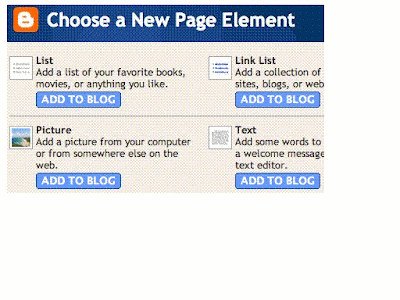
You can add several page elements to your blog page or sidebar by clicking Add a Page Element.

List: Add a list with the ability to add a title, select the number of items to display, sort your list alphabetically and add links to your list elements.

Link List: Add a link list to your blog with the ability to add a link list title, select the number of items to display and sort your link list alphabetically.

Labels: Add a list of all the labels you've used on your posts. Click each link to see a page showing all the posts with that label. You can change the title of the list, and sort it alphabetically or by frequency of use.

Picture: Add a picture from your computer or the web. You can also add a title and caption to your picture and shrink the picture to fit into your blog perfectly.

Text: Add text to your blog (such as a welcome message or footnote) with our rich text editor.

HTML/JavaScript: Add third-party functionality or other HTML/JavaScript code to your blog.

Feed: Add content from a site feed. Enter the feed URL, then click Continue. You'll then be able to add a title, select the number of items to show (up to five) and display the item dates and/or authors by selecting the appropriate check boxes.

Logo: Add one of our stylish Blogger logos to your blog.

Sunday, May 11

Online Storing


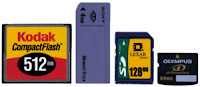
There are many ways to store files. There are the most familiar and used ways to us, which are by simply storing our files on our computer's or external hard-disk -- optical disk (CD, DVD, BD, etc...) -- flash disks (USB, Card disks) -- there was by using also floppy-disks, but thats gone now. Video and music tapes are also ways to store media files.


Life is evolving, technology is developing, new and improved ways of everything are coming to notice. The most advanced and efficient way of storing today is by storing data online.


Benifits of storing online:-


Storing online could be very useful. You could:-
  1. Store normally your files like what i do on http://www.mediafire.com/.
  2. Use this new technology to your benifit by backing-up your current files from your pc.
  3. Sharing files online.

To know more about sites that provide internet storage space, click here.
To watch a YouTube video explaining online storage, click here.
To know more about types of flash disks, click here.

Posted by: Mayez Kabbara