Media and New Technology Customized Search

Wednesday, April 30

How to store online

This post is related to "online storage" post. In this post i will explain in simple steps how you can store (and share) your files online, so that you could use this important Internet feature.

Of course the Internet is a black-hole that contains huge amounts of numbers of sites that helps us to enjoy this feature, so for that reason we wont talk about them all! We will talk about some of the best FREE sites between them, then maybe later you will learn the concept and be able to use any other site.


Picture files (jpg*, bmp, gif, etc...):-


There are many sites that you could store and share pictures that you know of (facebook, hi5, bebo...). But these sites listed below are limited to still images.


  • Kodak Gallery: Allows you to share, store, organize, edit, buy and sell photos. This site mainly concentrates on printing digital photos, on mugs, cards, calenders, etc... This site has a maximum limit of 150Mbs. To watch the video tutorial for that site click here. To create an account and get started on this site click here.


  • Snapfish: Owned by the HP Co. Aims to help us in storing unlimited numbers of digital photos, helps selling them, and offers us free pictures. To get started on snapfish click here. To see how it works click here.


  • Photo Bucket: Using this site you could also store video and music files. You could share, and link them to your personal or any other site or even to your blog. You could even make slide shows with music. To join.

Video files (mpg*, mpeg*, avi*...):-


Multimedia (Most if not all media files):-


  • MediaFire: (The one i use) Up to 100Mbs storage space. Lets you link your files to your website or blog. Very easy to use and not complicated at all. Signing up to this site doesnt take any effort at all. After you enter mediafire.com, on the top-right side you can easily create a new account or sign-in without even leaving the current window you are in. For more information how to use this site and why to chose it click here.


If you care to Back-up your files, here are some useful sites:-


  • Drive HeadQuarters: To sign up, make sure you know all the features and help you need from this link. You can download a software from this site that will back-up your files every time your Internet is on. Everything is explained on the homepage using articles and live demos. (Up to 1, 2 Gbs).


Mozzy: Allows 2 t0 3 Gbs of space. Also, all is explained in this site, nothing is complicated. To sign up, click here.


Posted by: Mayez Kabbara.

Tuesday, April 29

Word Press

Wordpress is a free blogging that helps you to create a complete website that deals with a certain topic and take over the whole business. With wordpress all you have to do is to add a free tool to your blog to convert it to a remarkable website. The readers won't even notice that they are visiting a blog.


How to make it work:


---> http://www.gnc-web-creations.com/wordpress-installation.htm


Download the wordpress to your pc, by Going to wordpress.org. In order to access the computer file, you have first to decompress it.
After that, you must modify certain things before uploading the file.
Change the file named "wp-config-sample" to "wp-config" inside the folder.
Then, include your data base information in the following things:


  • Insert The name of the database in the ('DB_NAME', 'wordpress')

  • Insert MySQL database username in the ('DB_USER', 'username')

  • Insert The password of the database in the ('DB_PASSWORD', 'password')

  • Insert The database host in the ('DB_HOST', 'localhost')


Define ('DB_NAME', 'wordpress'); // the name of the database
Define ('DB_USER', 'username'); // Your MySQL username
Define ('DB_PASSWORD', 'password'); // ...and password
Define ('DB_HOST', 'localhost'); // chance you won't need to change.


You only have to change the highlighted area, and make sure not to remove the quotes. Once you have completed this, save the changes you have made.


Upload WordPress Files
Do not uplod the folder itself, but the files within the wordpress folder, by using your ftp program. But if you want a free ftp program, you have to go to filezilla.


Begin the WordPress Installation
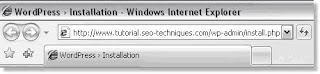
To begin the WordPress installation, you will need to run the WordPress installation script by accessing the wp-admin/install.php file from your browser window.

Example: http://www.madeupsite.com/wp-admin/install.php
In the address bar of your browser window, enter the URL of the domain or subdomain where you uploaded the WordPress files to, followed by: wp-admin/install.php

When you click the First Step link, a new window will open:


  1. Enter the name you have selected for your blog.

  2. Enter your email address and double check it before continuing.

  3. Place a check in the box for I would like my blog to appear in search engines like Google and Technorati. (This is important!)

  4. Click "Continue to Second Step".


Once you have followed the instructions on each new window, your blog will be created automatically for you. Make sure to save the user name and password provided.


Posted by: Ghyna Kurdy

http://codex.wordpress.org/Installing_WordPress

Sunday, April 27

Dear guests:


I've been told that my posts tend to be somehow geeky... so hopefully to resolve this problem i will do my best to make my incoming posts less complicated and more intimate.

Thank you
Mayez Kabbara