Media and New Technology Customized Search

Thursday, May 8

Editing your Posts

Hello new blog users :)

This post will hopefully help in making you organize your post easier and faster.

To most of you, you might have probably know by now how to create posts and editing them. But Blogger.com carries you much more options that could help you with your work and projects:


  1. Save your posts as draft: You can simply save your posts as draft by clicking the "SAVE NOW" in blue right next to the orange "PUBLISH POST" button.
    This will come in handy in case you didn't have time to finish writing your post and you wish to continue it later without putting the post on your blog.


  2. Schedule your posts to get published in a selected date: A recent feature by blogger. If you ever wrote a post that you don't wish to get published yet, and you know that you might have a difficulty to publish it on the day you wish to (because you cant have Internet access on that date or for whatever other reason). You could now schedule your posts in prior to appear on your post later.
    All you have to do is to click on the "Post Option" on the down-left side of your post-editor page. Then change the "Post date and time" on the right hand-side to a future date that you wish it to get published.

  3. To see and organize your drafts and scheduled posts. Go to "Edit Posts" in the "Posting" section of your "Settings". Then on the right-upper side, you can either click on


  • All: Which allows you to see ALL your posts (Published, drafts, and scheduled).
  • Drafts: To view and edit your drafts posts.
  • Scheduled: To view and edit your scheduled posts.
  • Published: To view and edit all your published posts.

Posted by: Ghyna Kurdy

Monday, May 5

Restore your deleted files!

Did you know that you can restore a deleted file?! I dont mean restore from the recycle bin, but i mean files that you thought have been permanantly deleted. Many might know that, but to those that dont, let me explain again. If you deleted a file by mistake, or deleted a file that you thought wasn't important but turned out that you need to use it again, then you can restore, or get that file again even after it has been deleted. How? There are many softwares that you could use -- Here is a list some of the most famous softwares or programs that you could get to restore your deleted files:-


...And many other more...


However you have to pay for these softwares. If you would like a FREE way, you could visit this 5 stars rated article, with just 4 easy steps that stands between you and any of your deleted files ---> http://www.ehow.com/how_2263300_files-windows-pc-free-software.html, or simply just download the file "Undelete Plus v2.94" on the URL: http://undelete-plus.com/download.html.
More explanation and another freeware software could be found on this site: http://www.aumha.org/a/recover.php

Hope that this post was helpful to most of you, because i believe that knowing this information is very relevant.

Post by: Mayez Kabbara.

Sunday, May 4

podcasting


While blogs have turned many bloggers into journalists, podcasting has the potential to turn podcasters into radio personalities.

what is podcasting?
"A podcast is a series of digital-media files which are distributed over the Internet using syndication feeds for playback on portable media players and computers. The term podcast, like broadcast, can refer either to the series of content itself or to the method by which it is syndicated; the latter is also called podcasting. The host or author of a podcast is often called a podcaster."

"Podcasting is quickly becoming a buzz word among the techie crowd. So what is podcasting, anyway? Podcasting is online audio content that is delivered via an RSS feed. Many people liken podcasting to radio on demand. However, in reality, podcasting gives far more options in terms of content and programming than radio does. In addition, with Podcasting, listeners can determine the time and the place, meaning they decide what programming they want to receive and when they want to listen to it."

a podcast is an audio broadcast that has been converted to an MP3 file or other audio file format for playback in a digital music player or computer. The "pod" in podcast was coined from "iPod," the predominant portable, digital music player, and although podcasts are mostly verbal, they may contain music.

Podcasting can be used for:
1. Self-Guided Walking Tours - Informational content. 2. Music - Band promotional clips and interviews.3. Talk Shows - Industry or organizational news, investor news, sportscasts, news coverage and commentaries.
4. Training - Instructional informational materials.
5. Story - Story telling for children or the visually-impaired.


how to create podcast in your blog?
First, you require an online space to save your recordings. Blogger doesn't offer hosting services for audio files; however, there are many providers of online storage space that offer both paid and free hosting services, such as Box.net, MoveDigital, DreamHost, and BlueHost.

Once you've uploaded your files to your web host of choice, you have to enable enclosure links to link to the file from within a Blogger post. To do so, just go to your Settings Formatting tab and set the "Show Link fields" option to "Yes."
This will add the enclosure link fields to your post editor.
When composing a post, you'll then see a field for your enclosures. From there, just enter the URLs of your audio files, and your blog will instantly become a podcast.
If you'd like to further customize your podcast, you may be interested in checking out FeedBurner.

By processing and optimizing your existing Blogger feed, FeedBurner not only offers extensive podcasting options but also the ability to customize, optimize, and monetize your feed and to track the number of listeners subscribed to your podcast.

posted by: Ghyna kurdy
www.blogger.com

Wednesday, April 30

How to store online

This post is related to "online storage" post. In this post i will explain in simple steps how you can store (and share) your files online, so that you could use this important Internet feature.

Of course the Internet is a black-hole that contains huge amounts of numbers of sites that helps us to enjoy this feature, so for that reason we wont talk about them all! We will talk about some of the best FREE sites between them, then maybe later you will learn the concept and be able to use any other site.


Picture files (jpg*, bmp, gif, etc...):-


There are many sites that you could store and share pictures that you know of (facebook, hi5, bebo...). But these sites listed below are limited to still images.


  • Kodak Gallery: Allows you to share, store, organize, edit, buy and sell photos. This site mainly concentrates on printing digital photos, on mugs, cards, calenders, etc... This site has a maximum limit of 150Mbs. To watch the video tutorial for that site click here. To create an account and get started on this site click here.


  • Snapfish: Owned by the HP Co. Aims to help us in storing unlimited numbers of digital photos, helps selling them, and offers us free pictures. To get started on snapfish click here. To see how it works click here.


  • Photo Bucket: Using this site you could also store video and music files. You could share, and link them to your personal or any other site or even to your blog. You could even make slide shows with music. To join.

Video files (mpg*, mpeg*, avi*...):-


Multimedia (Most if not all media files):-


  • MediaFire: (The one i use) Up to 100Mbs storage space. Lets you link your files to your website or blog. Very easy to use and not complicated at all. Signing up to this site doesnt take any effort at all. After you enter mediafire.com, on the top-right side you can easily create a new account or sign-in without even leaving the current window you are in. For more information how to use this site and why to chose it click here.


If you care to Back-up your files, here are some useful sites:-


  • Drive HeadQuarters: To sign up, make sure you know all the features and help you need from this link. You can download a software from this site that will back-up your files every time your Internet is on. Everything is explained on the homepage using articles and live demos. (Up to 1, 2 Gbs).


Mozzy: Allows 2 t0 3 Gbs of space. Also, all is explained in this site, nothing is complicated. To sign up, click here.


Posted by: Mayez Kabbara.

Tuesday, April 29

Word Press

Wordpress is a free blogging that helps you to create a complete website that deals with a certain topic and take over the whole business. With wordpress all you have to do is to add a free tool to your blog to convert it to a remarkable website. The readers won't even notice that they are visiting a blog.


How to make it work:


---> http://www.gnc-web-creations.com/wordpress-installation.htm


Download the wordpress to your pc, by Going to wordpress.org. In order to access the computer file, you have first to decompress it.
After that, you must modify certain things before uploading the file.
Change the file named "wp-config-sample" to "wp-config" inside the folder.
Then, include your data base information in the following things:


  • Insert The name of the database in the ('DB_NAME', 'wordpress')

  • Insert MySQL database username in the ('DB_USER', 'username')

  • Insert The password of the database in the ('DB_PASSWORD', 'password')

  • Insert The database host in the ('DB_HOST', 'localhost')


Define ('DB_NAME', 'wordpress'); // the name of the database
Define ('DB_USER', 'username'); // Your MySQL username
Define ('DB_PASSWORD', 'password'); // ...and password
Define ('DB_HOST', 'localhost'); // chance you won't need to change.


You only have to change the highlighted area, and make sure not to remove the quotes. Once you have completed this, save the changes you have made.


Upload WordPress Files
Do not uplod the folder itself, but the files within the wordpress folder, by using your ftp program. But if you want a free ftp program, you have to go to filezilla.


Begin the WordPress Installation
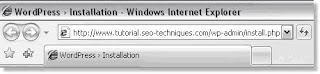
To begin the WordPress installation, you will need to run the WordPress installation script by accessing the wp-admin/install.php file from your browser window.

Example: http://www.madeupsite.com/wp-admin/install.php
In the address bar of your browser window, enter the URL of the domain or subdomain where you uploaded the WordPress files to, followed by: wp-admin/install.php

When you click the First Step link, a new window will open:


  1. Enter the name you have selected for your blog.

  2. Enter your email address and double check it before continuing.

  3. Place a check in the box for I would like my blog to appear in search engines like Google and Technorati. (This is important!)

  4. Click "Continue to Second Step".


Once you have followed the instructions on each new window, your blog will be created automatically for you. Make sure to save the user name and password provided.


Posted by: Ghyna Kurdy

http://codex.wordpress.org/Installing_WordPress

Sunday, April 27

Dear guests:


I've been told that my posts tend to be somehow geeky... so hopefully to resolve this problem i will do my best to make my incoming posts less complicated and more intimate.

Thank you
Mayez Kabbara

Tuesday, April 22

E-Disk® Altima™ Ultra320 SCSI 3.5" Flash Solid State Drive

The Altima E3S320 solid state is the first in the 3.5-inch format to advertise a capacity above 1TB. According to www.cnet.com: "BitMicro launched a solid-state 1TB drive last year but only for users of the Fiber Channel data-transfer format." The latest product was announced in the beggining of February 2008; it has a SCSI (Small Computer System Interface). The Altima Ultra320 SCSI model is expected to ship a new volume in the close end of this year. CNET published: "the company spokesman said. "These models are targeted towards military, enterprise, and industrial applications requiring rugged high capacity and high performance"

http://www.news.com/BitMicro-announces-1.6TB-solid-state-drive/2100-1006_3-6229730.html?tag=item
http://www.bitmicro.com/products_edisk_altima_35_u320.php
http://www.bitmicro.com/glossary_i-l.php#LUNETA
http://www.pcguide.com/ref/hdd/index.htm

How to improve your blog

Here are 7 simple ways to help you improve your blog:-


  1. To develop the measure of the online promotional success of a web page or website, you can insert a group of links to your post or page. This procedure can be applied in 10 minutes, and can support your post by defining the specific keywords by including hyperlinks to your post.

  2. In less than 20 minutes, you can make your blog more popular, by inviting your available friends on any social networking website such as facebook or hi5.

  3. Try to find out when it’s the best day that gets more eyes on your blog to publish your best posts.

  4. Give more weight to precise details such as the title, the first paragraph, the commencement of your post which are supposed to pull the readers towards your post and push them to read it. In addition try to avoid grammatical mistakes that bother the reader.

  5. Try to find out what is the best issue that gets traffic to your blog, by publishing the most up-to-the-minute that concerns the majority and can be understood with a very little effort, thus you will be able to grab the attention of readers.

  6. Take advantage of the titles and subtitles that cover the up-to-date magazines, because as we mentioned before the heading play an indispensable role in attracting people. Actually the title is the key of post’s hit. And you can visit “the Cosmo headline technique for blogging inspiration” to get a hold of useful titles.

  7. One of the most essential things is to reply people’s comment, in this way you can make sure guests the visitors of your blog will go to see it over and over again, thus you can exchange ideas, converse, communicate, answer their questions, discuss several issues and encourage them to comment again.

These information had been taken from: www.problogger.net

Posted by: Ghyna Kurdy...

Monday, April 21

Blog: Post footer

To answer Nabiha's question:-
If you want to know how to change the post footer all you have to do is to click on "Layout", then "Page Elements", you can then either click on the "Edit" in the "Blog Posts". A pop-up window will then appear (similar to the picture below):-


The post footer contains many elements like posted by line, timestamps, labels, backlinks, ads between posts, comments, etc...


If you want to change the author's name: (You can do this but it will effect the rest of your posts) Go to "Dashboard" (On the right-up), then click on "Edit Profile" on the right, then on the "Identity" section, change the "Display Name" then save...


If you want to show different names, Go to "Layout", then "Edit Html". First, backup template by clicking on "Download Full Template". Then put a check in "Expand Widgets Template" text box. Then go down in between the codes and search for these sentences:-


Delete:-


in the fourth line and change it with your nickname.

Then preview and Save Template.


If you want to insert author picture in the post footer:-

Delete the same piece of code in the above example and insert this line :-

Then preview and save template.


For more information on "Blogs" and "Post footers", please visit these blogs below:-
http://betabloggerfordummies.blogspot.com/
http://tips-for-new-bloggers.blogspot.com/

Posted by: Ghyna Kurdy...

Sony's first full-spec Blu-ray players outed

What is the need of a great capacity of storage if we don't have a reader or a player? Blu-ray is what is coming but how can we enjoy this new technology? Sony just released its first full-spec BD players. Ofcourse we know that PS3 is using this technology but the BDP-S350 and BDP-S550 are the first fully specced-up Blu-ray players. These great Japanese creations are deisgned to get the maximum out of BD's features and new technology.


BDP-S350


  • 1GB of built-in storage.
  • 5.1-channel analogue audio outputs.
  • Full HD 1080p pictures at 24 frames per second.
  • Lossless Dolby and DTS surround sound.
  • PIP Bonus View for cast and crew commentary.
  • Ethernet connection for broadband which will be accessible with the software upgrade BD-Live. This will allow you to download bonuses such as trailers and games (The player should carry a MSRP (Manufacturer Suggested Retail Price) of around $400.00).


BDP-S550


  • 1GB of built-in storage.
  • 7.1-channel analogue audio outputs.
  • Full HD 1080p pictures at 24 frames per second.
  • Lossless Dolby and DTS surround sound.
  • PIP Bonus View for cast and crew commentary.
  • Already be BD-Live (MSRP: $500.00)

So for those waiting for the next generation of Blu-ray players, you have just been informed the beggining of it :)


P.S.: These decks are US-only so far, and won't even be landing Stateside until this summer.

Posted by: Mayez Kabbara...